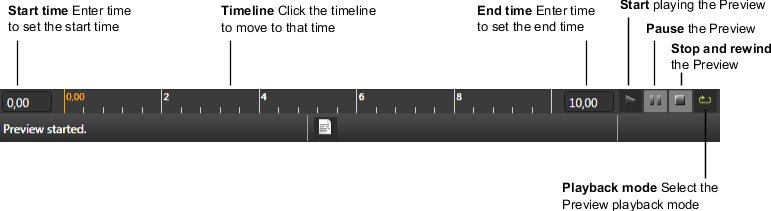
When Kanzi Studio loads a project, it shows in the Preview your project as if it was run as an application on the target device. To control your application in the Preview, use the controls in the bottom of Kanzi Studio.
The Preview shows your application either in playing or paused mode:
When the Preview is in paused mode, you can set the application time in the timeline bar.
You can use these playback modes in the Preview.
| Playback mode | Description |
|---|---|

|
In the continuous play mode the Preview starts playing at start time you set in the timeline bar, but does not have a set end time. |

|
In the play range mode the Preview plays in a loop the range between the start and end times you set in the timeline bar. |

|
In the play range and stop mode the Preview plays once the range between the start and end times you set in the timeline bar. |
Use these shortcut keys to control the Preview.
| Shortcut key | Description |
|---|---|
| F5 | Start the Preview in paused mode. |
| Ctrl+F5 | Start the Preview in play mode. This is the default Preview setting when you open a Kanzi Studio project.To change this setting, go to > User Preferences > Advanced > Preview. |
| F6 | Start playing the Preview. |
| F7 | Pause the Preview. |
| F8 | Exit the Preview. |
| Ctrl+F8 | Restart the Preview. |
| F9 | Stop the Preview. |
By default the Preview shows your Kanzi project as if it was run as an application on the target device. However, you can view parts of your Kanzi project, such as certain layers or views to a viewport scene from different cameras.
To view only a specific layer and its content: